
 Back
BackIntegrating SmartSurvey with Mailchimp

The SmartSurvey integration with Mailchimp enables you to create and update your Mailchimp contacts post survey. You can take survey feedback and segment your contacts depending on their response.
Making the Connection
To start, choose Automate after the Build stage, or from Home or My Surveys pages click on the icon.

The next thing you will be presented with is the list of available integrations.
To connect to Mailchimp click the Configure button. If this is the first time your SmartSurvey account is connecting to Mailchimp, you will be prompted to establish a connection and will see the following box:

This gives you the opportunity to name the connection, which is useful if you need to connect to multiple Mailchimp accounts. Add your chosen name and click Create New Connection.

Please login as you normally would. The connection will be established automatically, but you may need to complete a two-factor authentication check based on your company's security settings.
If you already have one or more Mailcimp connections set up, then they will be listed above the add new Connection box and you just need to click the Use button next to the one you want to use.
Basic Configuration
On creating or selecting the Connection you want to use you will be prompted to Configure the integration. This is easy to set up and you can perform the following Actions:
Push Actions |
Pull Actions |
| Create Record | Get Record by Email |
| Update Record | Get Record by Id |
| Upsert by Email | |
| Update by Email |
Configure Example
Having selected Object, then select from available Lists

Name
- Integration Name: Add a name for the integration.
Integration Type
- Push: Send Data from SmartSurvey to Mailchimp
- Pull: Retrieve data from Mailchimp
Push Actions
- Create Record: The integration will attempt to add a new record to the target object
- Update Record: The integration will attempt to change the data using the id of an existing record
- Update by Email: The integration will attempt to change the data using the email of an existing record
- Upsert by Email: The integration will attempt to change the data in an existing record in Mailchimp, based on a supplied email address. If a matching record is not found, a new record will be created. In the Settings configuration you will need to insert which field in the survey will be used to update or create the contact. User Select merge code to find the field and then Insert. Then ensure the email field is entered in the Member ID box - see example using a custom variable below:

Pull Actions
- Get Record: Access a record in the targeted object and read its data
- Get Record by Email: Access a record in Mailchimp members object, based on a supplied email address
Field Mapping (Push Actions Only)
The Field Mapping page will appear once you click Next Step on the main integration configuration page for a Push Action.
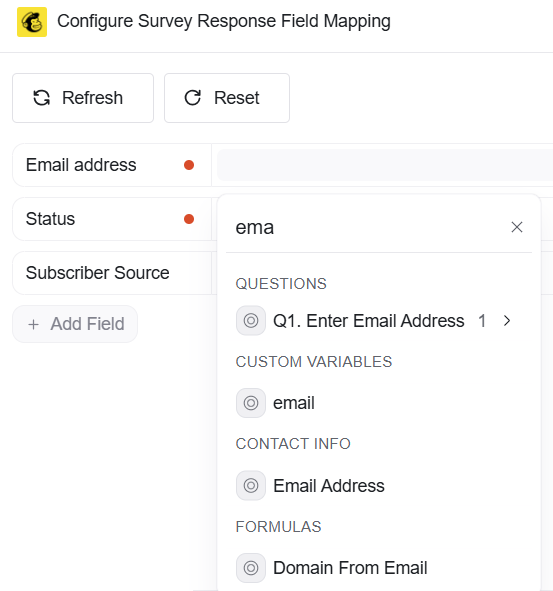
The Field Mapping page displays all the core fields in the targeted object down the left, with boxes to the right.
When you first click into a box you see the options:
- Start typing to search... : When you start typing your survey question you will be able to select the Answer to pass back to Mailchimp.
- Variables: Click Variables to search for and map directly from your survey reponses
-
Formulas: Select Formulas to choose or create functions to modify
Click + Add Field to see and select additional Mailchimp fields to map.
 |
 |
Variables
- Questions: The answers to the questions on the survey
- Respondent Details: Various information about the specific respondent, such as response time, IP Address (if the survey is not anonymous), and selcted language.
- Survey Details: Details about the survey such as it's name or nickname.
- Custom Variables: Any Custom Variables associated with the survey
- Contact Info: Information from the Contact List.
Formulas
Select Formulas to choose or create functions to modify variables before they are pushed to the object. The bulk of the list are ready-made functions that cover commonly-used transformations such as extracting first or last name, or getting the domain out of an email address, or combining strings. These actions can be stacked so a field can be mapped to a formula that uses as a variable that's the output of a formula.
See additional help article: Field Mapping for CRM Integrations
Mapping the Survey
To map your survey, simply work your way through the listed fields and map them in turn. Your progress is saved at every point that you make a change, so there is no Save Changes button. Once you've mapped everything you want, then simply close the field mapping screen by clicking the X icon in the upper-right.
The integration uses the term Merge Fields for both Audience Fields and Merge Tags from the members object.
Click + Add Field, then select Merge Fields. This will bring in all of the Audience Fields and Merge Tags for your contacts.
 |
 |
Pull Integrations
Pull integrations retrieve data from Mailchimp to be be used as part of the survey, rather than sending data to Mailchimp once the response is completed.
The retrieved data can then be used in Piping Tags as part fo the survey content or as default answers.
Finding the Data
So, to make this work, you need to first tell the integration what data it should retrieve. This is done as part of the integration configuration described above, either you choose an object, and then enter an object ID into the survey data, or you use Get Contact by Email and then tell the integration where to find the email address. In both cases, the data to look for can be supplied as part of a survey question, as the pull integration will try and retrieve data every time it tries to display an Integration Piping tag.
Displaying the Data
To display the data as part of your survey, or as a default answer (configured in question editor Options), you need to use a piping tag of the format:
[Integration(field_name)]
Where field_name is replaced by the internal name of the property in the targeted Mailchimp object.
This is not the Label of the property (That being the friendly name, captialised and perhaps with spaces that you see in the Mailchimp UI) but its internal name, no spaces, and is what the property is known as to Mailchimp code and APIs.
In most cases, the internal name is the same as the label with any spaces replaced by underscores (so Email Address becomes email_address).
If you're finding this convention isn't working, then the best bet is to check the event log for your pull integration by going to the integrations list, choosing your integration, clicking on the Options button and selecting the Event Activity option:

You'll then see a list of the recent actions the integration has done (or tried to do)

And if you click the question mark icon on the right of each row, it will show all the data transferred in that action (The below image is from a dummy mailchimp record):

You can see all the field names, with their associated values. Simply find the one you need and copy the name into your piping tag.
To populate your survey with contents of merge_fields using sample from above for First Name you will use:
[integration(merge_fields.FNAME)]
If you are using Multiple Textboxes for Address and want to pull in the details to default answer, configure:
row1:[integration(merge_fields.Address.addr1)]||row2:[integration(merge_fields.Address.city)]||row3:[integration(merge_fields.Address.state)]
You will need to add pull integration tags by typing manually as the piping tag UI that allows you to pick from a list of allowable tags does not have access to this information.
Scenario Net Promoter® Score SmartSurvey Mailchimp segment
Say you want to segment your contacts by Net Promoter® Score (NPS) group for your member in mailchimp, rather than the individual score (0-10) selected by the survey respondent.
- Add the Net Promoter® Score question type to your survey
- Create a new field in mailchimp with the 3 options of, Detractors, Passives and Promoters
- Create Segments for the same groups.
In the box next to NPS start typing map or click Formulas and select Mapped Value, click into fx Map Values.

Find your NPS question and select Answer

Click into each score box and select the appropriate group from your mailchimp field
Click Save and Close

Now which ever score the respondent chooses they will automatically be segmented for you next campaign
