
 Back
BackDropdown

SmartSurvey offers three different multiple choice question types: a multiple choice question which allows respondents to only select one option from a list of choices which are all on screen, selecting one from a dropdown, and a multiple choice question with the option to select multiple answers. An easy way to spot the difference in an existing survey is that the former will have circular radio buttons next to the answer choices (or a single drop-down menu) and the latter will have square checkboxes.
This question type can be used to create Rating and Likert scale questions.
Creating Dropdown Questions
To create your muiltiple choice question:
- Click Add Question on your survey
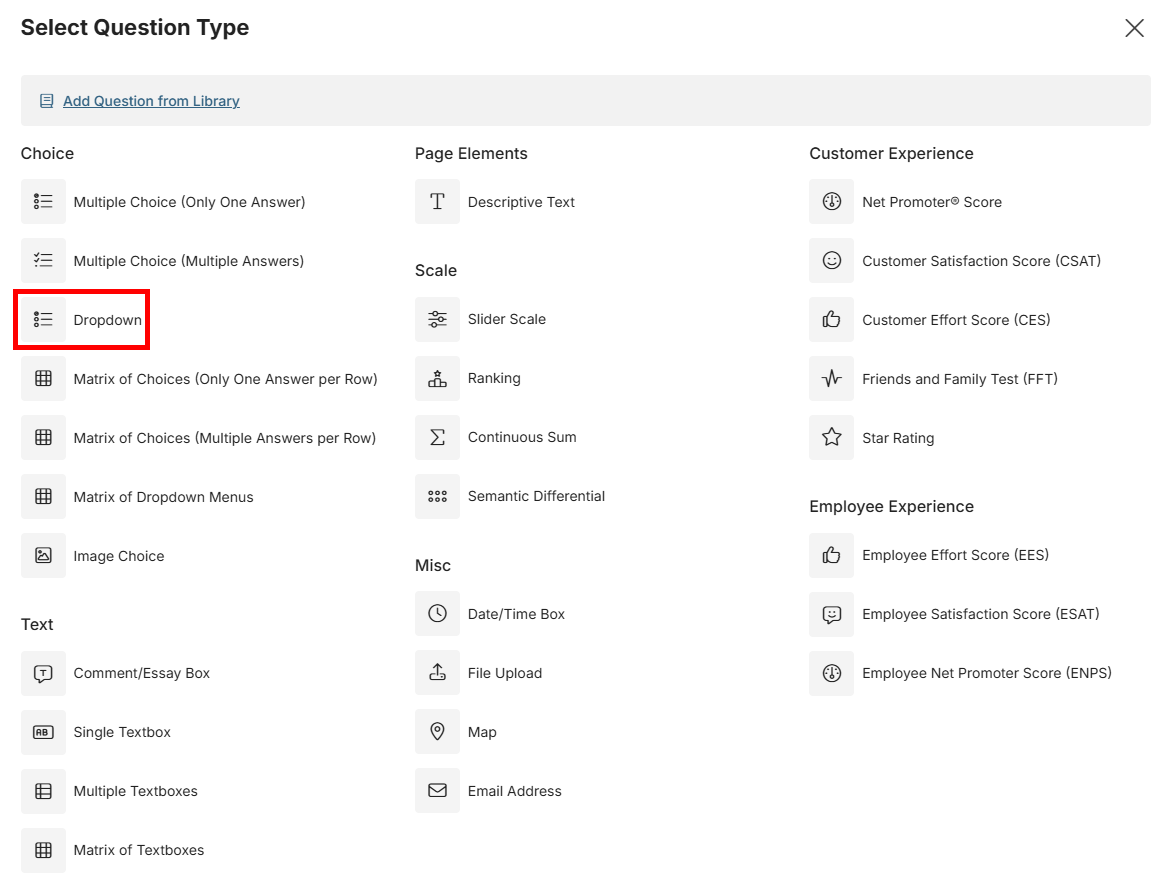
- From the menu, select Dropdown
- Enter your question text in the Question box
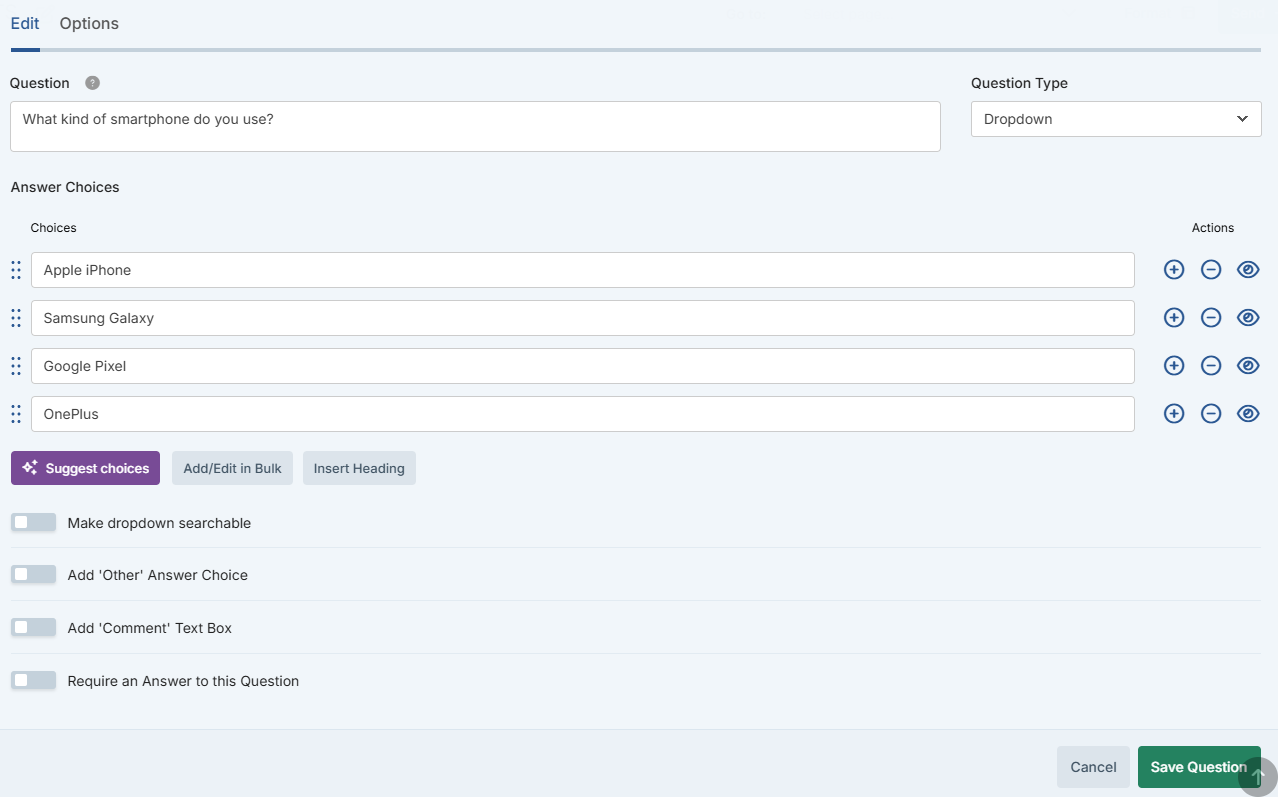
- In the Answer Choices fields, type each answer. You can also add in bulk (See Below), or choose from pre-set templates.
- Click the green Save Question button to add the question to your survey
Optionally, you can select and customise pre-defined answer choices by selecting an item from the Answer Template drop-down menu.
Adding a large number of choices
You have the option of clicking Add/Edit in Bulk which will provide a large textbox to paste in the values you want in the question.

You can also choose a pre-built list from the Answer Template dropdown.
Sub-headings
Click the "Insert Heading" button (next to "add/edit in bulk") to add an option as a Sub-heading. Sub-headings are editable, and can be moved in the order of options, but cannot be selected as answers by respondents. Options added as subheadings are marked with an "H" Icon.

Example above: "Public Transport" is a Sub-heading. "Bus" will be a selectable option.
Customising Dropdown Questions
When you build a dropdown question with one answer, you can customise it with the following additional fields and options.
| Make dropdown searchable | Add a search box to the dropdown. Ideal for very long lists of answers in a compact format. |
| Add Other Answer Choice | Adds an "Other" text box option to your dropdown list, allowing respondents to type their answer if it's not listed. |
| Add Comment Text Box | Adds a free text field underneath the question. Useful if you would like respondents to add comments. |
| Require an Answer to this Question | Forces the respondent to select an answer before they can progress to the next page. |
| Randomise, Sort or Flip Answer Choices | Allows you to control the order that the answers are presented: randomly, in alphabetical order, and so on. Useful to help you avoid bias. |