
 Back
BackOverview
Consultations is a dedicated area of SmartSurvey for running public or organisational consultations. It brings together a survey, supporting information, and a results summary in one place, and publishes everything to a public-facing hub site.
The Consultations Index
To access Consultations, click Consultations in the main navigation. The index page shows three summary cards at the top:
- Open Consultations - consultations that are currently live and accepting responses
- Upcoming Consultations - consultations that have been published but whose open date is in the future
- Closed Consultations - consultations that have passed their close date
Below the summary cards, your consultations are listed in a table showing the title, status, visibility, owner, open date, close date, and number of responses.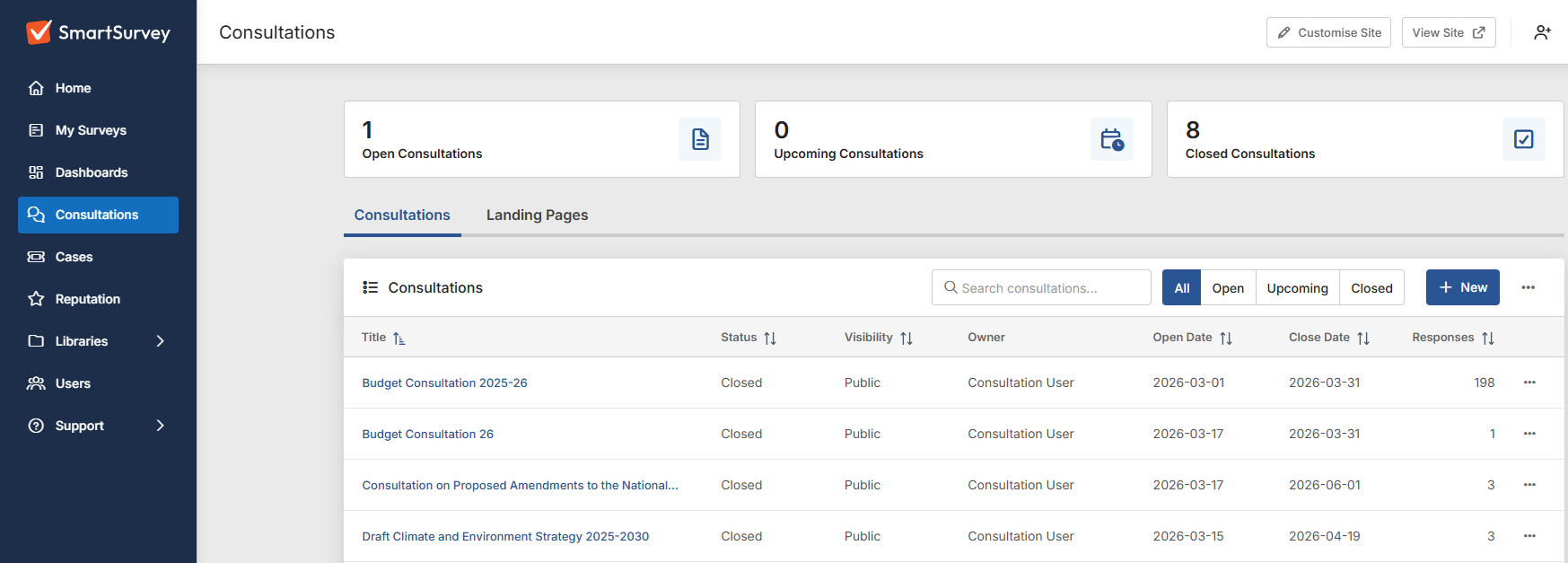
Filtering and Searching
Use the All / Open / Upcoming / Closed filter buttons above the table to narrow the list by status. Use the search box to search by title, survey, or owner name.
Consultation Statuses
Each consultation moves through the following statuses during its lifecycle:
- Draft - the consultation has been created but not yet published. It is not visible to the public.
- Published - the consultation is live. If the open date is in the future it will show as Upcoming; once the open date is reached it becomes Open.
- Closed - the consultation has passed its close date and is no longer accepting responses.
- Results - the We Asked, You Said, We Did content has been published. This is the final public-facing state.
Actions on a Consultation
Click the ellipsis menu (⋯) in the row of any consultation to access the following options:
- View Consultation - opens the public-facing consultation page in a new tab
- Edit Consultation - opens the consultation details page
- Share Consultation - opens the sharing panel to manage team member access (only available to the consultation owner)
- View Audit Log - opens the audit log filtered to this consultation (only available to admins)
- Delete Consultation - permanently deletes the consultation. This cannot be undone.
Creating a New Consultation
If you have permission to create consultations, a New button appears in the top right of the table. Click it to begin. See Creating a Consultation for a step-by-step guide.
The Consultation Hub
The consultation hub is where your consultations can be found by your audience. Two buttons appear in the top right of the Consultations index.
- View Site - opens your public hub in a new tab
- Customise Site - opens the hub customisation settings (visible to admins and hub managers only)
See Customising Your Consultation Hub for more information.