
 Back
BackCustomising Your Consultation Hub
The consultation hub is the public-facing website where your consultations are listed and respondents can browse and participate. The Customise Site page lets you control the hub's appearance, content, and global settings: including branding, page copy, and social media links.
Note: The Customise Site page is only accessible to account owners and users with hub administration permissions.
Opening Customise Site
- Go to Consultations in the main navigation.
- Click Customise Site in the top right of the page.
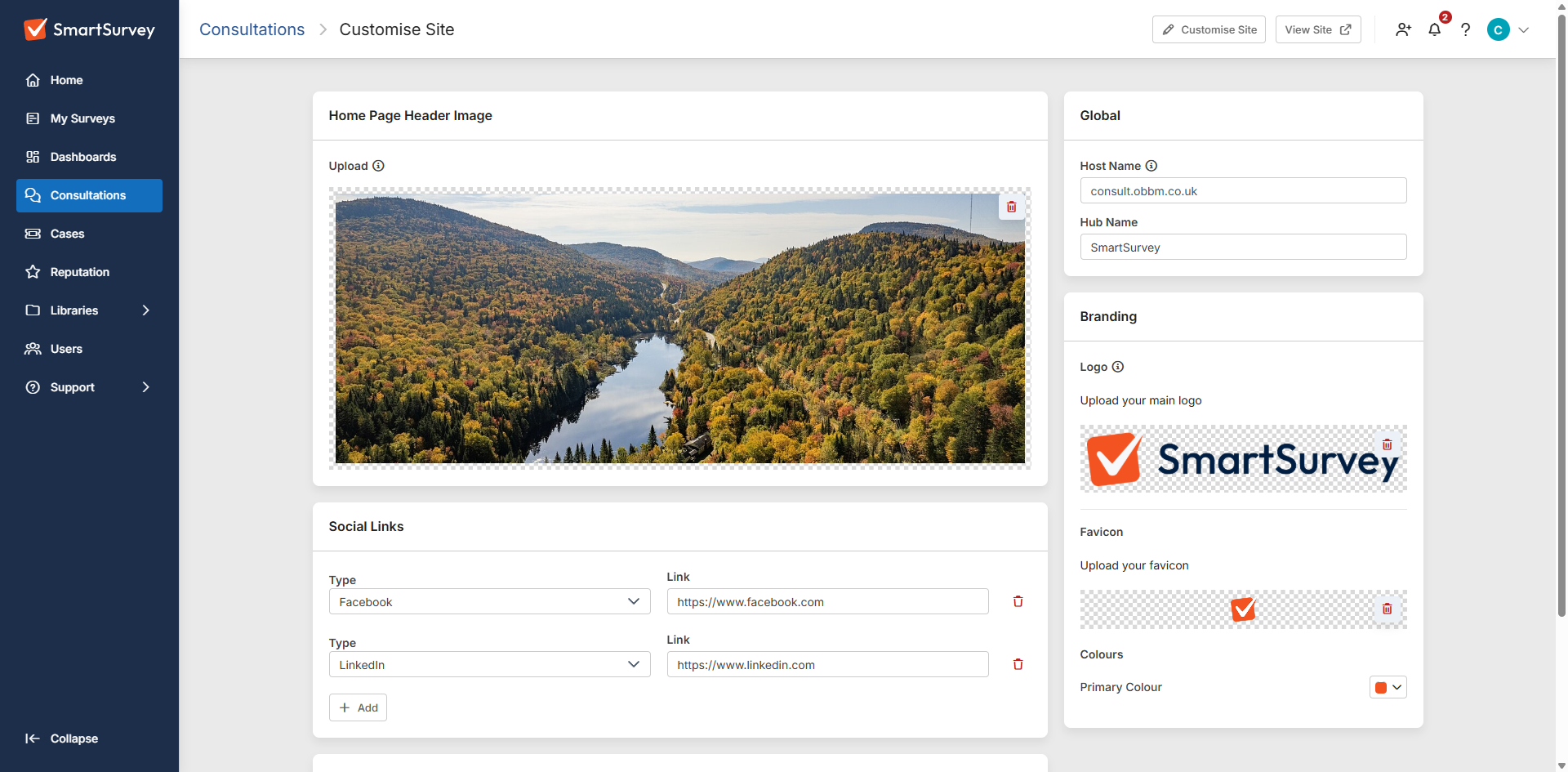
Home Page Header Image
Upload a banner image that appears across the top of the hub's home page.
- Click or drag an image file into the Home Page Header Image upload area.
- Accepted formats are .jpg, .jpeg, .svg, and .png. Maximum file size is 20MB.
- For best results, keep the image no larger than 1280px x 500px.
To remove a banner, click the delete icon on the image preview.
Social Links
Add links to your organisation's social media profiles. These are displayed on the hub site.
- Click Add in the Social Links section.
- Select a platform from the dropdown: Facebook, Twitter, LinkedIn, Instagram, or YouTube.
- Enter the full URL for your profile page.
- Repeat for each platform. Each platform can only be added once.
To remove a social link, click the delete icon next to it.
Content
The Content section lets you manage the text pages on your hub site. Select a tab to edit each page:
- Welcome: set the title and subtitle shown on the hub's home page.
- Cookies: add your cookies policy.
- Help: add help content for hub users.
- Privacy Policy: add your privacy policy.
- Terms of Use: add your terms of use.
- Accessibility: add your accessibility statement.
Each page uses a rich text editor, supporting formatting, links, lists, and other content.

Global Settings
In the Global sidebar card:
- Host Name: the domain name of your hub site. This field is read-only. Contact support if you need to change it.
- Hub Name: the name of your hub, used in the site header and page titles.
Branding
In the Branding sidebar card:
- Logo: upload the main logo for your hub. For best results, keep the image no larger than 250px x 64px.
- Favicon: upload a favicon for the browser tab.
- Primary Colour: set the primary colour used for buttons and highlights across the hub.
To upload a logo or favicon, click or drag a file into the upload area. To remove an existing image, click the delete icon on its preview.
Note: Branding set here applies to the hub globally. Individual consultations can override these settings using their own Custom Branding option. See Editing Consultation Details for more information.
Saving Your Changes
A Save Changes bar appears at the bottom of the page whenever unsaved changes are detected. Click Save Changes to apply them, or Cancel to discard.