
 Back
BackDisplay Logic
Display Logic is available on our latest plans (Advanced, Growth, Full Access and Smart Products). If you are on one of these plans and you're not seeing the options on your survey, you'll need to contact our Support team to migrate your account over to our new survey core platform.
We are currently in the process of migrating customers and you may not yet have been migrated. Please raise a ticket in your SmartSurvey account.
Display Logic is a new form of logic that works alongside Skip Logic to create surveys that tailor to your respondents’ answers.
Display Logic works differently to skip logic in an important way:
- Skip Logic works through rules that you place on a question that then decides what happens when the respondent leaves that page.
- Display Logic works through rules you set on an answer choice, a question or a page to directly control when that item will appear.
Put simply, you set Skip Logic to control what happens next based on an action the respondent takes at the current point in the survey.
You set Display Logic to control what happens at the current point in the survey, basd on what's already happened.
There are two main forms of Display Logic and they use mostly the same interface for configuration:
- Display Logic for Pages
- Display Logic for Questions.
Display Logic for Pages
Display Logic for pages lets you directly control the circumstances under which a given page will show to a respondent.
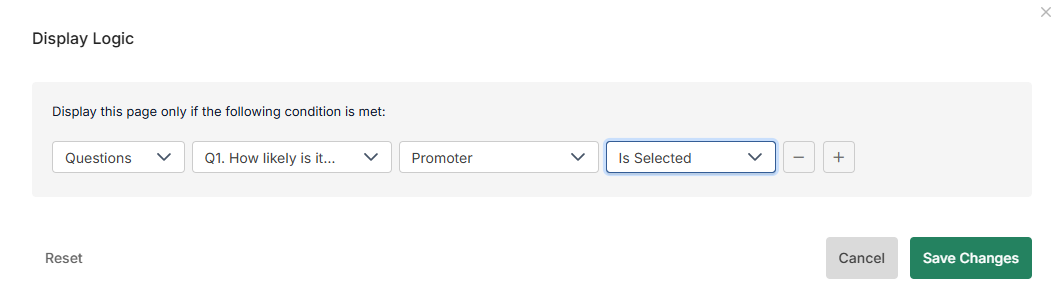
To apply Display Logic to a page, start by clicking the “Display Logic” button at the top of the page in the survey editor:

This brings up the Display Logic editor.
The editor allows you to set any number of conditions for showing the page via a series of dropdowns.
The first dropdown is for inputs. You can choose questions, variables, or metadata.
- Questions will show you all the questions in the survey prior to this page.
- Metadata has things like tracking link name, language, or respondent ID.
- Variables shows the survey’s custom variables.
Once you’ve chosen an input, you can create criteria for it.
Using a variable, metadata, or free-text question for an input:
You’ll be offered a list of criteria- equals, contains, greater than, less than, etc. You can also choose to enter custom Regex for it.
Using a multiple-choice question:
You’ll be offered a list of the options for the question, and then you can choose to check whether that option was selected or was not selected. Net Promoter® questions allow you to choose the net promoter group the respondent was sorted into.
Multiple criteria
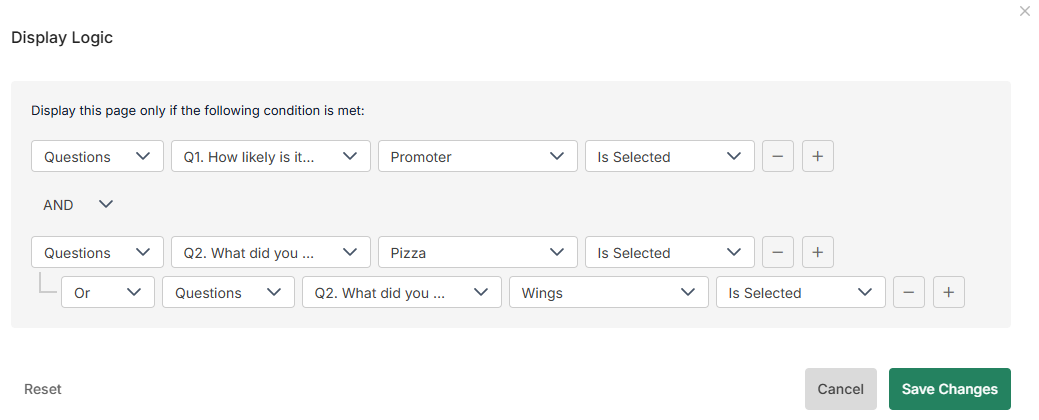
Display Logic allows you to set multiple criteria, by simply clicking the “+” button next to a criterion to add a new one. Multiple criteria can be separated into groups and have AND or OR operators. to create a group, choose "move to new group" from the and / or drop down for a given rule.
For instance, if we wanted to have a page that only showed to respondents who ordered Pizza or Wings, and left us a high Net Promoter response then we could set up the criteria as below:
To remove criteria, click the "-" icon for that row.
Display Logic for Questions
Display logic for Questions works in much the same way as Display Logic for Pages, with two main changes:
- It only affects a specific question, or specific options on a question.
- The criteria can be set up to include questions on the same page, what we call in-page logic.
This means that you can set up a question which will appear on the page the respondent is currently viewing once they answer a question earlier on that page.
Setting up Display Logic for a complete question is the same as doing it for a page. You just need to click the “Display Logic” button in the upper right of the question area in the editor, and then, if editing a multiple-choice question, choose "question".
Then, enter your criteria as before. All the same information about inputs and operators applies.
In-Page Logic
For in-page logic, you’ll note a toggle in the upper-right of the display logic box. Click this to change to in-page logic mode.
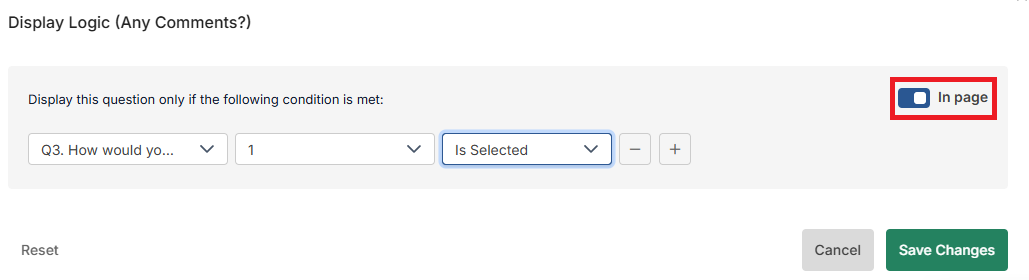
What this will do is change the inputs, so it now includes the questions that are before the one you’re editing and also on the same page, and only those questions.
That’s the only difference. You can set up your criteria as before and use groups of ANDs and ORs in the same way.
Answer Choice Display Logic
You can configure logic using the same interface to determine which answer choices display on the question.
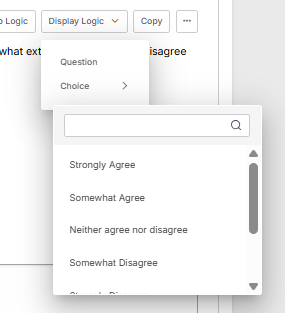
This works the same way as for the full question, except when prompted to choose between effecting the whole question or a single choice, you click on the "Choice >" option and you'll be shown a list of the choices (for a multiple choice question) or the rows (for a matrix) to apply logic to.
It should be noted that in-page logic (described below) cannot be applied to choices.
Viewing Criteria
Once a page or question has been set up with display logic this will be marked in the survey editor. The full criteria for one of these can be viewed by clicking the expander arrow on the appropriate element.

Error Checking
Display Logic has a limited built-in error checking system. If you set up the criteria for a question or page in a way that’s impossible, such as choosing mutually exclusive options on a question, it will show you an error message. This is a limited feature, so it can’t catch more complex conflicts across multiple questions and pages.
Use with Skip Logic
Surveys can have both Display Logic and Skip Logic at the same time, but extreme care should be taken when doing so as you can set up rules that conflict.
Using Contact List Data
At the time of writing, Display Logic cannot use contact list data as part of a set of criteria. If you want to do this, you will need to use piping to either pipe the contact list data into the survey invitation URL as custom variables, to then use them as variables, or pipe them into hidden questions via defauilt answers to use them as the answers to questions.
Troubleshooting
If you do not see Questions to select from but only Metadata

It will because of one of the following:
- It is the first page
- It is the first question on the first page
- It is the second question in the page but In-Page mode is not switched on