
 Back
BackConversational Surveys
Conversational surveys turn your questionnaire into a chat-style conversation. Respondents answer one question at a time, with each new question appearing like a message in a chat. It is a friendly, focused, mobile-friendly way to collect responses, and it works especially well for short surveys.
When to use the conversational format
- Short surveys (around 15 questions or fewer). The one-at-a-time flow keeps people moving.
- Mobile-first audiences. The chat layout is designed for phones.
- A more casual, engaging tone than a traditional page of questions.
If you have a long or complex survey with a lot of branching, the Classic (paged) or one-question-at-a-time formats are usually a better fit.
Turn on the conversational format
- Open your survey and go to the Build step.
- Open the Format panel using the Format button at the top of the designer.
- Choose Conversational.
Your survey switches format straight away. Everything you have already built is kept – only the way questions are presented to respondents changes. You can switch back to another format at any time, and all of your settings and layout are restored.
What is different in the conversational format
Because the whole survey is presented as a single flowing conversation, a few things work differently. All questions live on a single page and flow one after another. You cannot split questions across multiple pages, and page-level tools (inserting, moving, deleting pages and page navigation) are not shown.
Question types
| ✅ Supported | ❌ Not yet supported |
|---|---|
|
|
Features and settings
| ✅ Supported | ❌ Not yet supported |
|---|---|
|
|
Customising Conversational Surveys
|
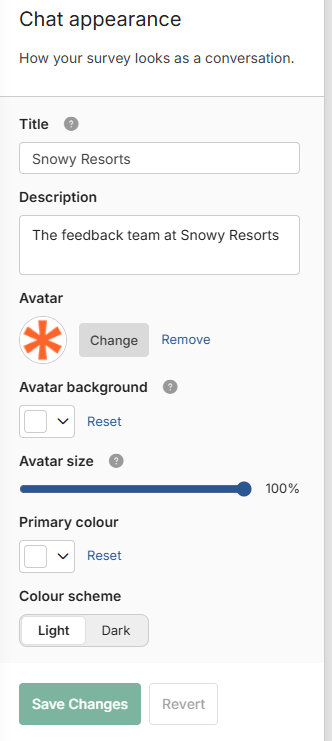
When a survey is in conversational mode, the usual survey theme settings are not used as they're not appropriate for this type of survey. Instead, Conversational Surveys have their own set of appearance settings, accessed by clicking "Appearance" from the left-hand menu. Once clicked, you'll be able to access the following settings.
Alongside the control panel is an interactive preview of your conversational survey's appearance. You can immediately see the effects of any changes you make and respond to the survey as a respondent would, just as in the normal preview mode. |
 |
Good to know
- Keep it short. Everything is one continuous conversation, so conversational surveys work best for shorter surveys (around 15 questions or fewer).
- End messages (thank-you, disqualified, already completed, survey closed) appear as a chat message at the end of the conversation.
- The designer guides you. If you try to add an unsupported question type or page/skip logic to a conversational survey, the survey editor won’t allow it and will tell you why.
- Contact-list login still uses the standard (non-chat) login screen, though password-protected links work in the chat.
You cannot add an unsupported type while the survey uses the conversational format, and if your survey already contains one you will be asked to remove it before switching.
Logic
Skip logic, page logic (jump to a page, finish, or disqualify) and page-level display logic are not available, because there is a single page and one continuous flow. Display logic on individual questions still works.
Answer options
Section headings and “None of the above” options are not available in the conversational format.
Survey settings that do not apply
Some survey and collector settings have no effect on a conversational survey, and you will see a note on those settings pages. They include:
- Appearance: button text, hiding the previous button, and showing page numbers.
- Page randomisation.
- Some finish options, such as disqualify auto-redirect and the print-response feature.
You can still change these settings; they simply will not take effect while the survey uses the conversational format.
Switching an existing survey
If your survey contains something the conversational format cannot show, you will see a “Can’t change survey format” message listing exactly what to change – for example “Remove the Matrix question” or “Remove all skip logic”. Make those changes and switch again.
The conversational format changes only how respondents see your survey. Your questions, responses and reports are unaffected, so you can preview both formats and pick whichever suits your audience.