
 Back
BackAdd a CAPTCHA to a Survey
Adding a CAPTCHA to a survey can help prevent responses from bots or other automated processes. This is a way to improve the quality of your data, reducing uncertainty around the insights you draw from it.
This is a Full Access feature available on surveys using our new Survey Platform. Contact us if you think you should see the option and we can check which survey version you're using.
Activating a Survey CAPTCHA
- From the survey’s Build tab, select Settings.
- In the settings page, select “Security” from the Left Menu
- Set the toggle text to “CAPTCHA Protection” to on.
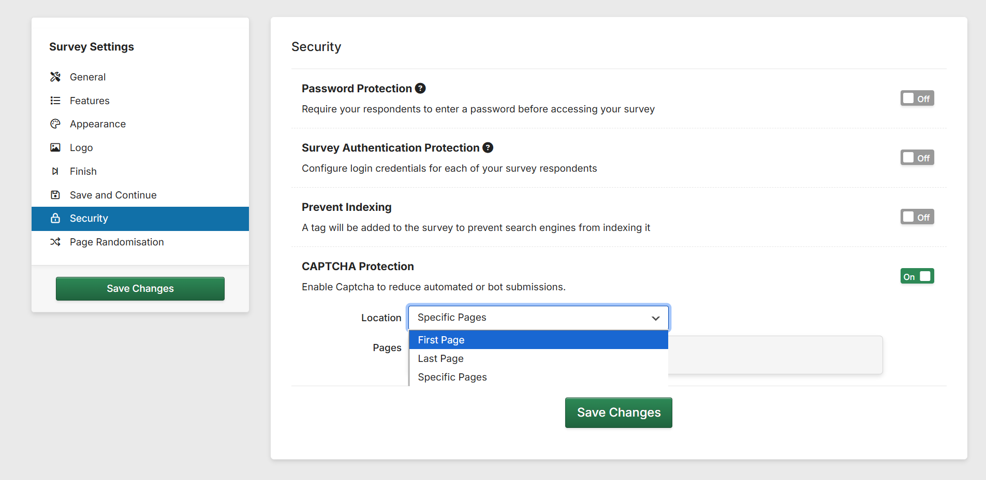
CAPTCHA Options
When CAPTCHA is activated on your survey, you will have options as to where it will appear.
A drop-down menu lets you select whether the challenge will appear on the first page, the last page, or on specific pages that you select by entering them into a box.
How a CAPTCHA will appear to respondents
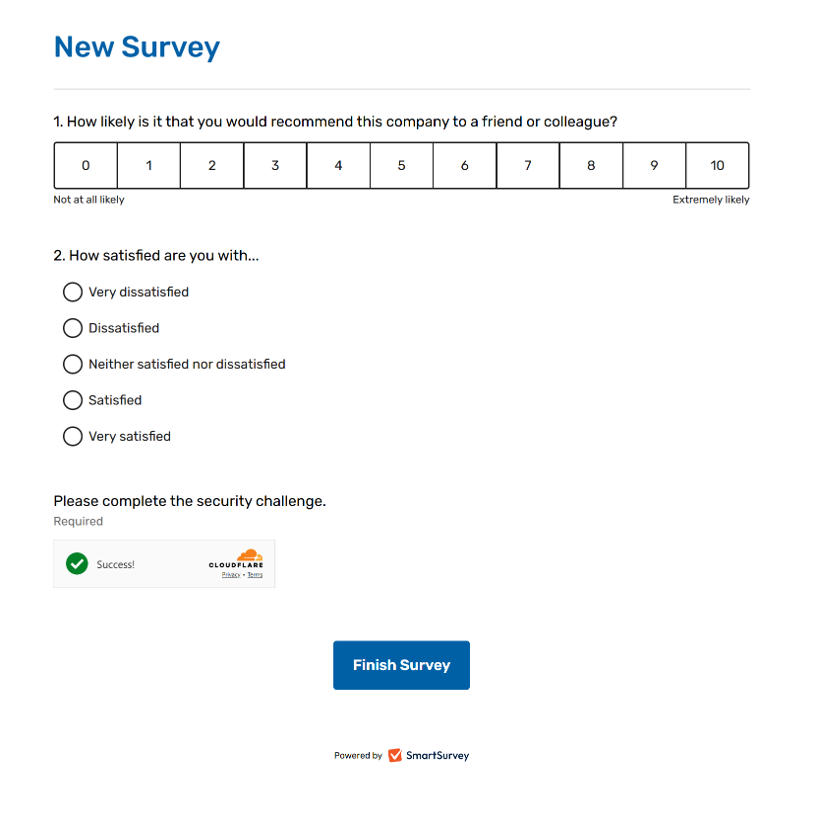
For most respondents, the challenge will load, perform checks in the background, and then auto-complete without the respondent needing to do anything.
If the background checking comes back as unsure that the respondent is human, then the respondent will be asked to perform an image recognition task to pass the test.