
 Back
Adding Conditions, Branches and Waits to a Workflow
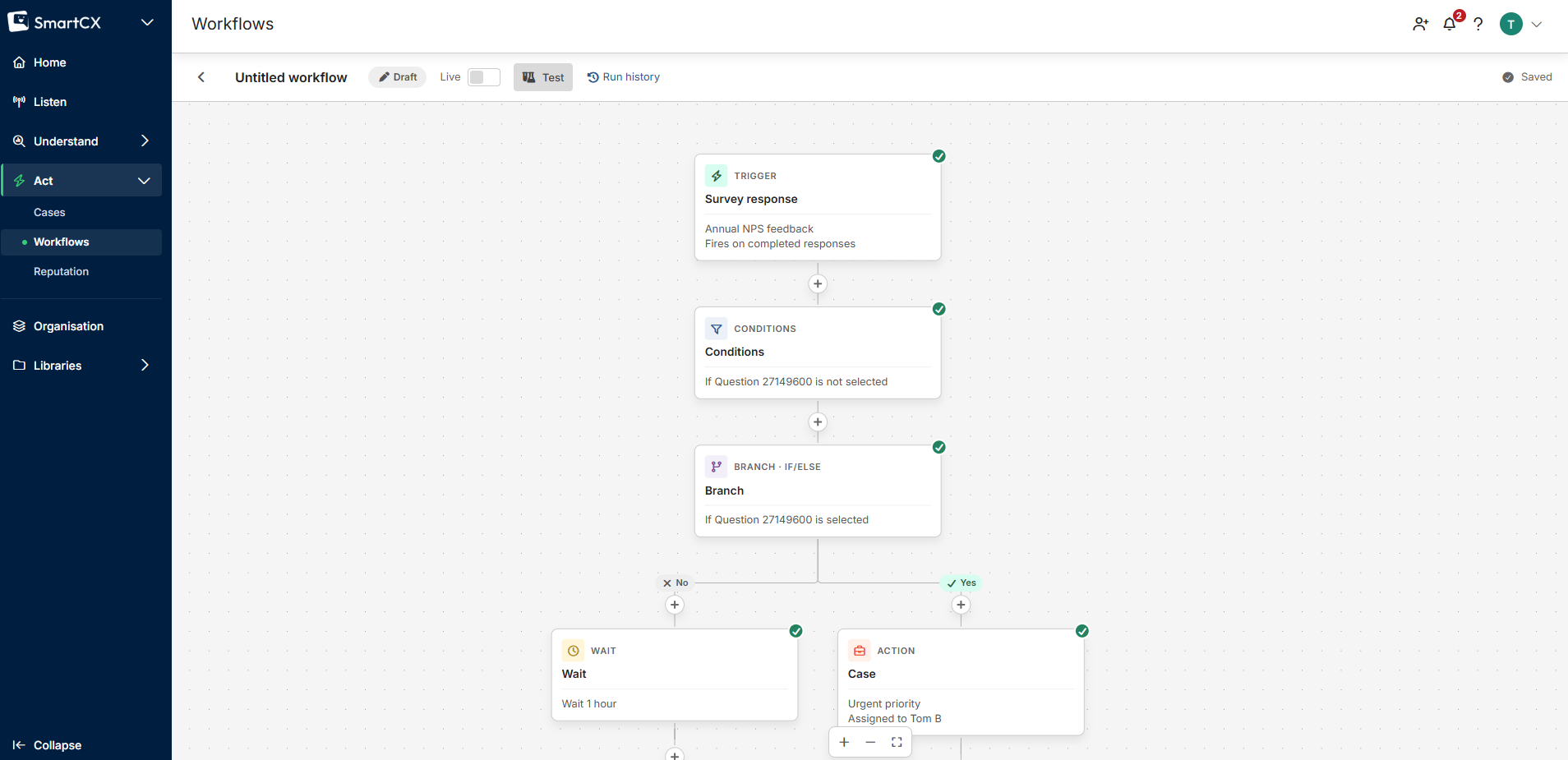
Conditions, branches and waits control which responses a workflow acts on and when. A Conditions step lets only matching responses continue, a Branch sends matching responses down one path and everything else down another, and a Wait pauses the workflow before the next step.
Conditions and branches use the same logic builder as Display Logic. You need a survey chosen in the trigger before you can build them.
Conditions
Use a Conditions step as a gate: matching responses carry on to the steps below; the rest leave the workflow there.
- Click + where you want the step and choose Conditions.
- Under Continue only when the response matches:, build each row by choosing where the data comes from, the question or field, the operator and the value. Click + for another row and use the AND / OR dropdown to combine rows.
- Click Save step.
A Conditions step needs at least one complete condition. Conditions are checked when the step runs, so a step after a wait uses the response as it is at that moment.
Branches
Use a Branch to do different things depending on an answer — for example create a case for unhappy customers and thank happy ones.
- Click + where you want the step and choose Branch.
- Under Send down the Yes path when:, build the condition and click Save step.
The branch gains a Yes path and a No path, each with its own + button. In this version a branch evaluates a single condition (combine criteria in a Conditions step above it instead), a workflow can contain one branch, a branch can't contain another, the paths don't rejoin, and at least one path needs a step before you can publish. Deleting a branch asks whether to Keep "Yes" path or Keep "No" path; the kept path moves up and the other is removed.
What you can build conditions on
- Questions — any question in the trigger survey; operators depend on the question type.
- Variables — custom variables passed in through the survey link.
- Metadata — Survey Title, Survey Nickname, Respondent ID, Tracking Link ID, Tracking Link Name and Language Code.
- Enrichment — the sentiment or AI theme of an open-text answer, for questions with Sentiment Analysis or AI Thematic Analysis set up. A workflow using an Enrichment condition waits for that analysis to finish before checking it.
- Contact — fields from the contact list the response was invited from, when the survey was sent by tracked email invitation.
Text operators include Equals, Not Equals, Contains, Does Not Contain, Starts With, Ends With, Is Empty and Is Not Empty; numbers also offer Less Than, Greater Than and their "or equal to" variants. You can match against a regular expression, but the panel won't save an invalid one.
If a question or choice used in a condition is later deleted from the survey, the step shows an error and the workflow can't be published until you update it. The survey editor warns you when a survey is used by live workflows.
Waits
- Click + where the pause should happen and choose Wait.
- Under Delay, enter an amount and choose Minutes, Hours, Days, Weeks or Months (30 days), then click Save step.
A new wait starts at 1 hour; the shortest is 1 minute. A waiting run shows as Waiting in the run history with the time it resumes, and anything depending on the response is rechecked when it does. A wait can go anywhere, including on a branch path. Starting a workflow with a wait produces a warning but doesn't stop publishing. Turning a workflow off doesn't cancel runs already waiting — they finish on the version they started.