
 Back
Sending an Email Notification from a Workflow
An Email step sends an email to one or more addresses when a run reaches it — for example to alert a colleague to every response with a low score.
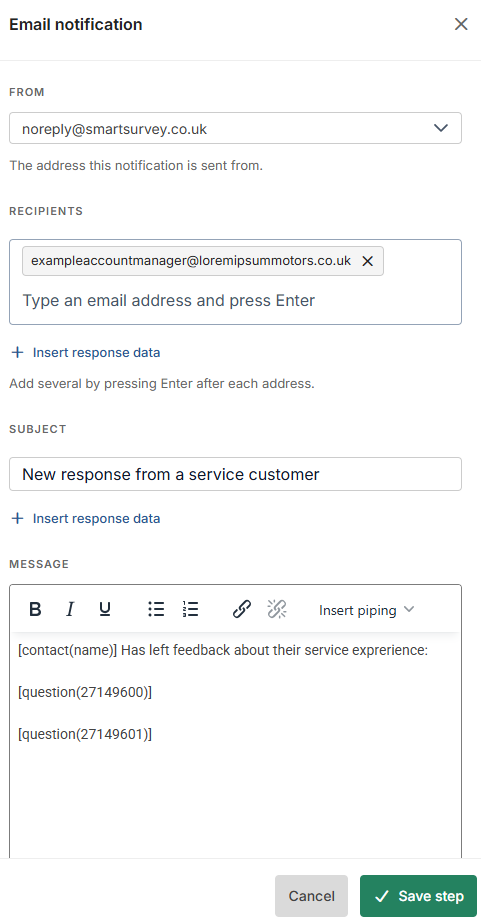
Add an Email step
- Click + where you want the step and choose Email.
- Under From, choose the address the notification is sent from.
- Under Recipients, type an email address and press Enter. Repeat for each address.
- Enter a Subject and write the Message, using basic formatting if you like.
- Click Save step.
Recipients, subject and message are required. An invalid address is highlighted in the recipients box and must be removed before saving.
Including response data
Click Insert response data beneath a field (or the piping button in the message toolbar) to add a question answer, the invite contact's name or email, or a custom variable; it's filled in for each response when the email is sent. The Recipients field only offers data that resolves to an email address — the respondent's invite email or an Email Address question — and each recipient must be a single address or a single inserted item, not a mix. See Inserting Response Data into Workflow Actions.
How the email is sent
Each recipient gets a separate email, and every one counts towards your account's email balance. If the balance runs out, or no recipient resolves to a valid address when the run fires, the run stops and appears on the Issues page with the reason. See Monitoring Workflow Runs and Fixing Issues.