
 Back
Inserting Response Data into Workflow Actions
Email, Follow-up and Case steps can include details from the response that triggered the workflow — a respondent's name, an answer they gave or a custom variable. The value is filled in separately for every response, so one step can produce a personalised email or case title each time it runs. It works like Piping within a survey, but with a response that has already been submitted.
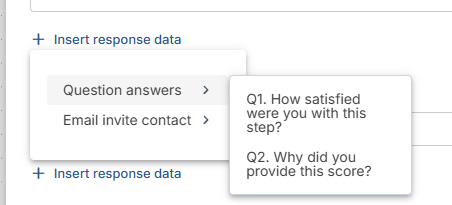
Inserting data
- Click into the field, then click Insert response data beneath it (or Insert piping in a message editor's toolbar).
- Choose a group, then the item. A placeholder such as [question(123)] is added at your cursor.
You can mix placeholders with your own text, for example "New feedback from [contact(name)]". The trigger survey must be chosen first, because the list of questions comes from it.
What you can insert
- Question answers — any question in the trigger survey, by number and title. Some types also offer parts of the answer: a matrix row, an individual box in a Multiple Textboxes question, or an option in Date/Time, Continuous Sum and Slider questions. Descriptive Text and Matrix of Drop-Down Menus questions can't be inserted.
- Email invite contact — the Name and Email address of the contact the response was sent to; filled only when the respondent was invited by email from a contact list.
- Custom variables — any custom variables defined on the trigger survey.
It's available in an Email step's recipients, subject and message; a Follow-up step's message and survey variable values; and a Case step's title, description, contact name and contact email. The Recipients field is restricted to items that resolve to an email address — the Respondent's email or an Email Address question — each as a single placeholder on its own.
When a value can't be filled in
If a placeholder can't be resolved when the step runs — for example its question has been deleted — a required field (email subject, message, case title) stops the run and lists it on the Issues page with a reason such as "Some text in this step couldn't be filled in", while an optional field (case description, contact name) is left blank and the step continues. An answer the respondent simply left empty is inserted as blank text and doesn't stop the run.