Back
BackEmbedding Questions within Email Tool Invitations
To support engagement in your survey from within your email invitation, you can embed the first question in your survey within your email.
This encourages the recipient to begin their response directly from the email invitation. The answer the respondent chooses is then pre-filled in the first question on the survey when it's opened.
Configuration
You can choose to embed the following question types in your email invitation:
- Multiple Choice (Only One Answer)
- Multiple Choice (Multiple Answers)
- Star Rating
- Net Promoter® Score (NPS)
- Employee Net Promoter Score (eNPS)
- Customer Satisfaction Score (CSAT)
- Employee Satisfaction Score (ESAT)
- Customer Effort Score (CES)
- Employee Effort Score (EES)
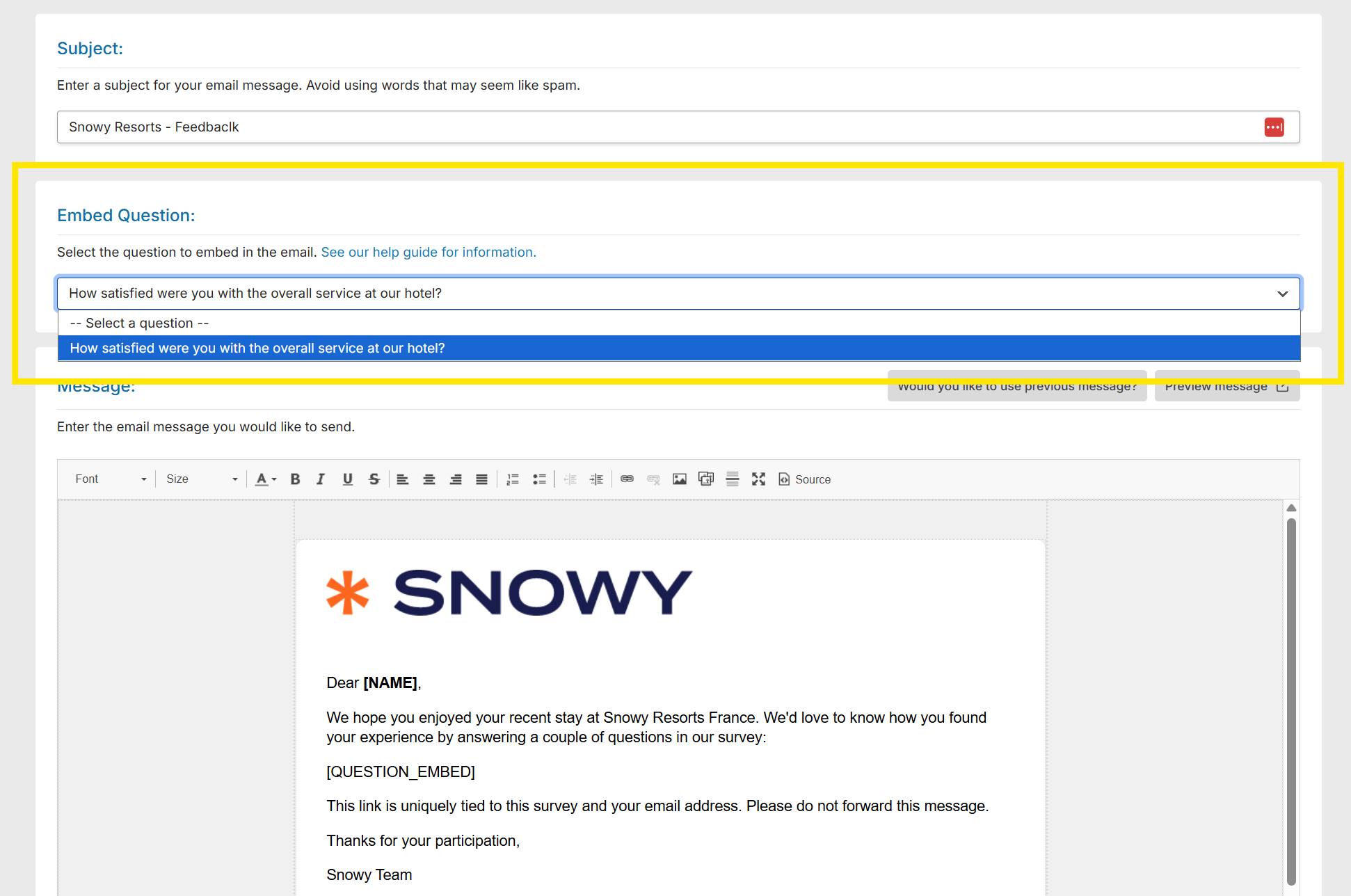
The question you want to embed in the email needs to be on first page of your survey.
Once you have selected your question, you'll see the [QUESTION_EMBED] tag in the email content. To see the question within the email, you can click on "Preview Message" which will load the actual email template as it would be sent.
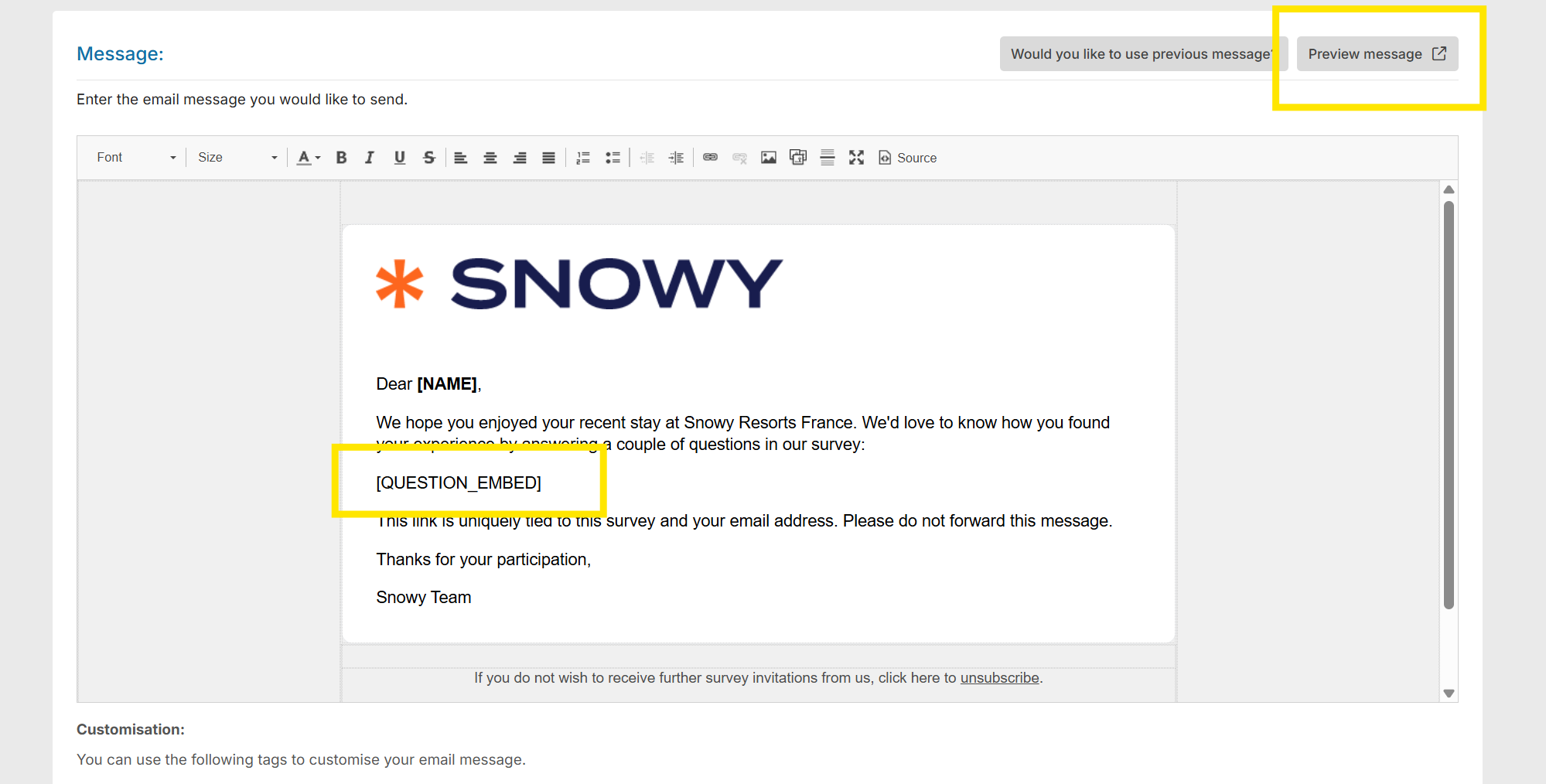
Only include the [QUESTION_EMBED] tag in an email if you want to use the feature, don't use [SURVEYLINK].
If any changes are made to the question before the email invitation is sent they'll be reflected in the embedded question.
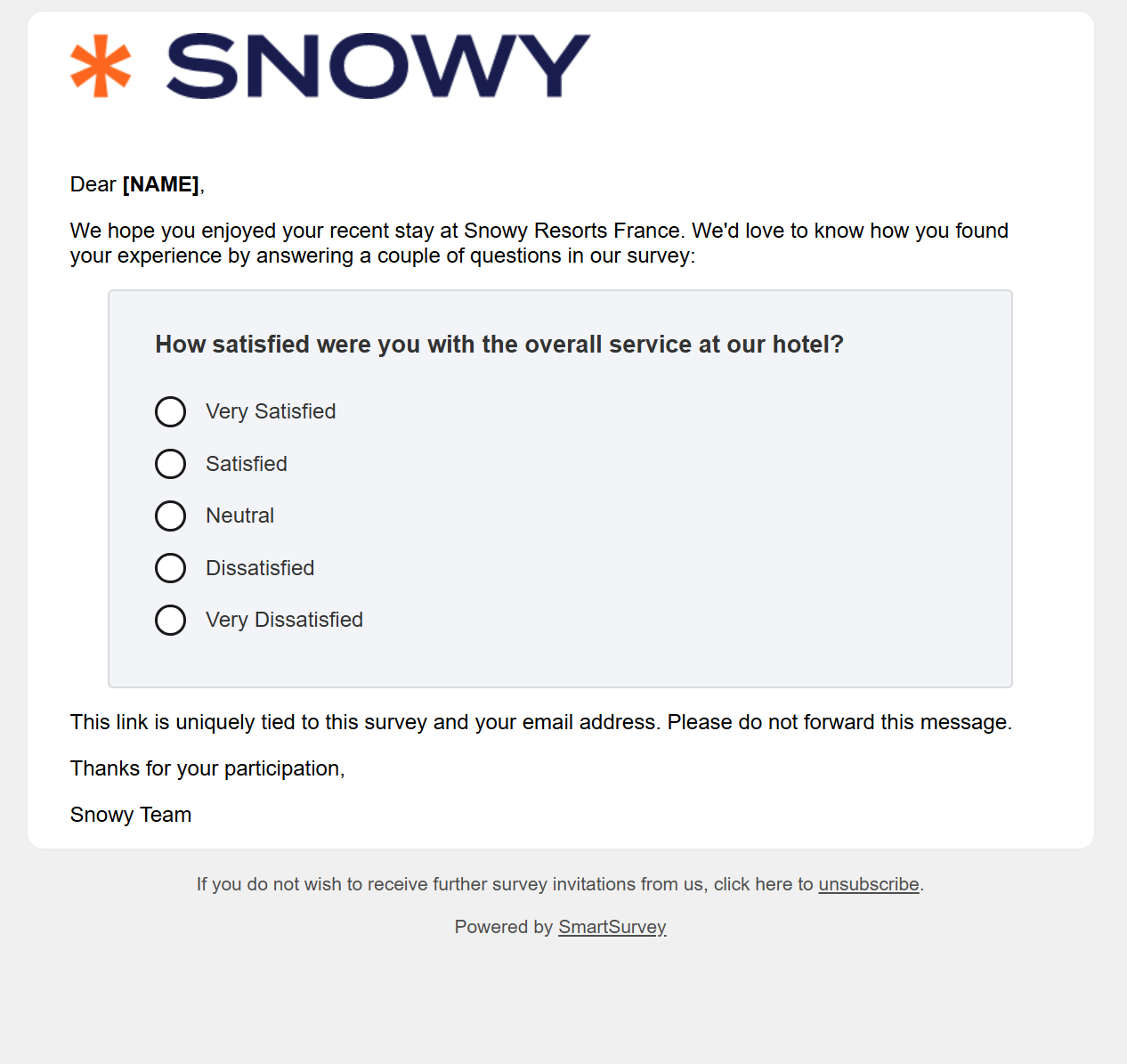
Your final email send will render the question (Customer Satisfaction example below)