
 Back
BackAI Response Translations
If you're running a survey where you expect to receive responses in multiple languages, you can enable the AI Response Tranlsation feature to translate your open text answers and comments back to your default survey language for analysis.
Enable AI Response Translations on your Question
On a Comment/Essay Box question or a question with Comments enabled, you'll see an option to enable "Translate Responses" within your question options.
This option can be found directly under the "Add comment box" option on multiple choice questions, or on the "options" tab for the essay box question.
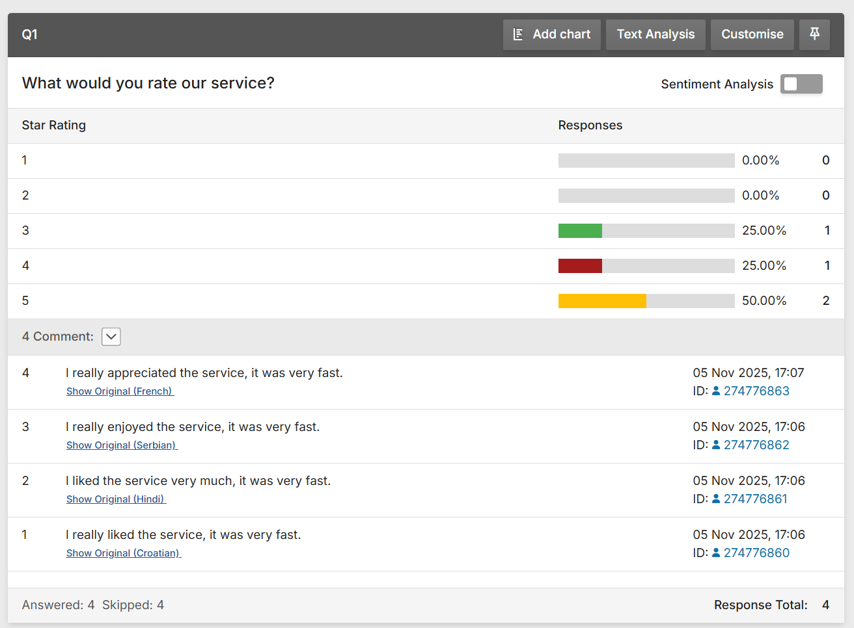
When the option is active, text responses will be translated into the survey's Default Language.
AI Credits
AI Response Translations consumes AI Credits to translate your responses. For this reason, there is a confirmation popup shown when you activate the feature on a question, as below.
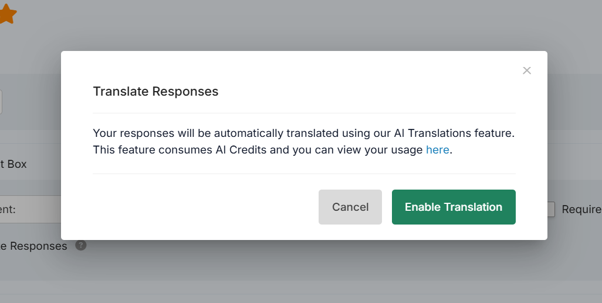
One AI Credit is consumed when an open text response to a question is submitted and translated. So, a each response to a survey with three suitable questions set for translation will consume three AI credits.
Your account will receive a certain number of AI Credits per annum as part of your plan and you have the option to purchase more depending on your needs. Find out more about AI Credits here.
If your account runs out of AI Credits, your responses will stop translating. We recommend ensuring your account has sufficient AI Credits to translate your expected response volume.
Viewing Translated Responses
When translation is activated on a question, you will see the translated response text when viewing survey results in-app in the following areas:
- Results Summary
- Shared Views
- Dashboards
- Shared Dashboards
Text Analysis word clouds will use the translated response text.
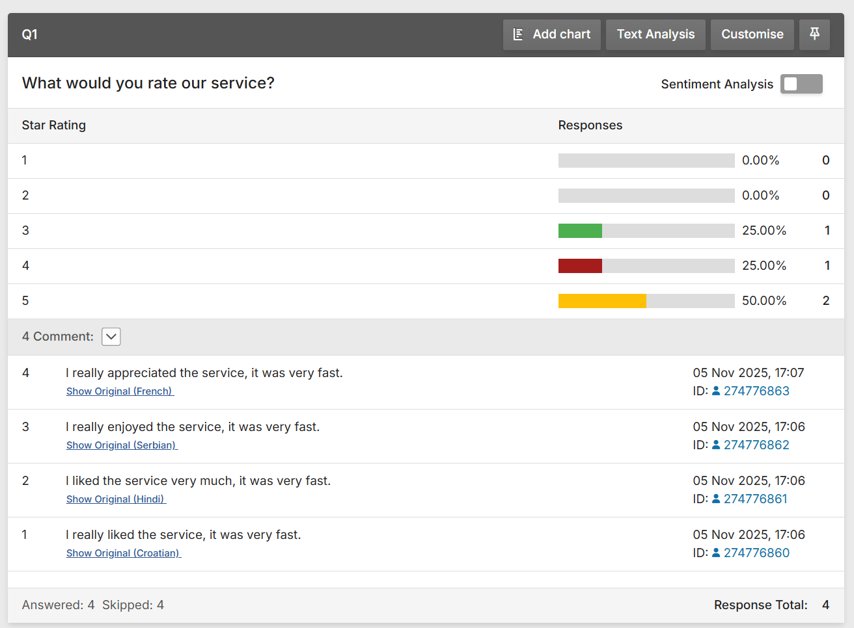
To view the original untranslated text, click the "Show Original" text. this will also tell you the text's language, as determined by the feature.
Exporting Translated Responses
By default, files generated by the Exporter will include the translated responses. This can be changed via an toggle in the options tab of the exporter settings for each export.