
 Back
Workflows Overview
Workflows act on survey responses automatically. When a response comes in, a workflow can check what the respondent said and then send them a follow-up survey, email your team or create a caseb without anyone watching the results.
Workflows are available on the SmartCX Pro plan.
How a workflow works
A workflow is built on a visual canvas from a trigger — the survey response that starts it — followed by steps that run one after another. Each step can be any of the following:
- Conditions — continue only for responses that match your criteria.
- Branch — split into a "Yes" path and a "No" path depending on an answer.
- Wait — pause for a set time before the next step.
- Email — send a notification to one or more addresses.
- Follow-up — email the respondent a link to another survey.
- Case — create a case in SmartSurvey for the response.
Each response that enters a workflow becomes a "Run", which you can follow step by step in the workflow's run history.
Where to find Workflows
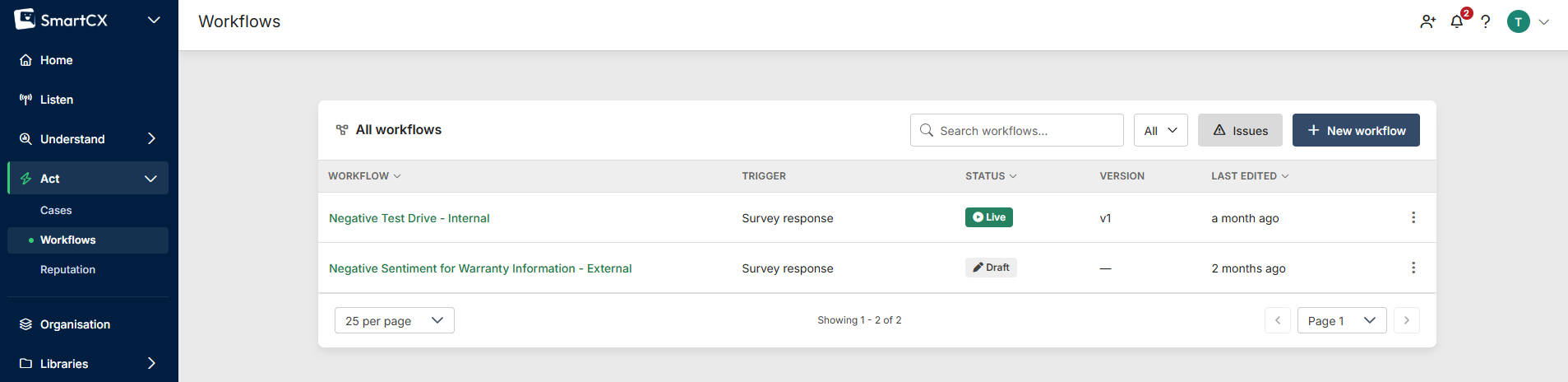
Click Workflows in the main navigation to open the All workflows page. It lists every workflow in your organisation with its trigger, status, published version and last edit. From here you can click New workflow, open a workflow by clicking its name, filter by status or search by name, click Issues to see runs that need attention, or use the actions menu (three dots) on a row to open its Run history or delete it.
Workflow statuses
- Draft — never published; not acting on responses.
- Live — published and running for new responses.
- Disabled — turned off. New responses no longer enter it, and runs already in progress finish on the version they started.
Edits on the canvas save automatically but don't affect the live version until you publish them.
Who can use Workflows
Any user in your organisation can view, edit and publish workflows, except users with Analyse-only access. Emails sent by workflows count towards your account's email balance like any other email sent from SmartSurvey.