
 Back
Linking Feedback Sources to a Touchpoint
A touchpoint only shows a score and sentiment once it has a feedback source: one survey, the questions in it used for the score, and optionally an open-text question whose comments drive sentiment. You set these in the touchpoint's detail panel, or create a new survey for the touchpoint on the spot.
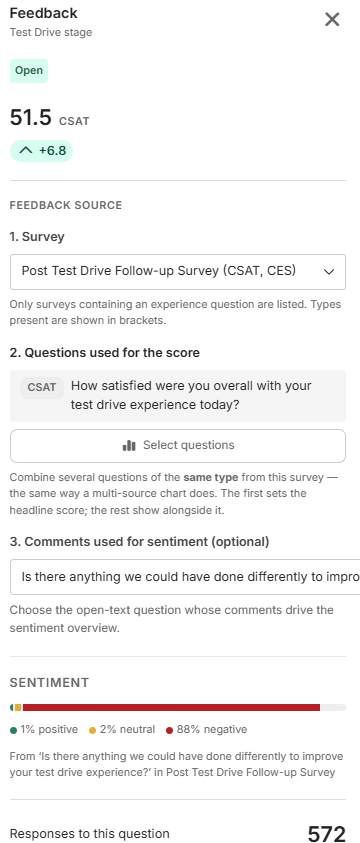
Open the panel
On the Edit journey map page, click a touchpoint card. The Feedback source section has three numbered steps. You can also open the panel from a touchpoint on the journey overview, where source changes are applied with the panel's own Apply Changes button.
Step 1 — choose the survey
Under 1. Survey, choose a survey (type to search). Only surveys containing an NPS, CSAT or CES question are listed, with the types each contains in brackets; draft and closed surveys are labelled. A touchpoint links to one survey: choosing a different one asks you to confirm Change survey, because the questions already chosen are cleared. No source linked clears the survey, as does the × on the card after confirming Remove survey.
Step 2 — choose the questions used for the score
Under 2. Questions used for the score, click Select questions, tick one or more questions in the Select Questions window and confirm. They're pooled into a single score, the same way a multi-source dashboard chart combines questions. All of a touchpoint's scored questions must be the same type — all NPS, all CSAT or all CES; the first you pick sets the type and the first listed sets the headline score. If the survey has no eligible questions, the panel says so.
Step 3 — choose the comments used for sentiment (optional)
Under 3. Comments used for sentiment (optional), choose the open-text question whose comments drive the sentiment split. Only questions with Sentiment Analysis switched on are offered. Once linked, the panel's Sentiment section shows the positive, neutral and negative percentages for the selected period.
Create a new survey instead
If no suitable survey exists, click Or create a new survey for this touchpoint under Step 1:
- Check the Survey name (pre-filled as "touchpoint name feedback").
- Under Experience question, choose CSAT — How satisfied were you with this step? (the default), NPS — How likely are you to recommend us? or CES — How easy was this step?.
- To collect comments too, tick Add an open-text follow-up for sentiment and enter the Question Text.
- Click Create draft survey.
A draft survey is created with those questions (Sentiment Analysis switched on for the follow-up), and they're linked as the touchpoint's sources. Apply your changes to save the link; if you cancel, the draft survey stays in your account unlinked. The touchpoint shows Draft until you finish and launch the survey in the survey builder. NPS is a relationship measure usually asked once, so CSAT or CES normally suits individual touchpoints better.
Apply your changes
Source changes are staged like everything else. Click Apply Changes in the header (or the panel footer on the overview) to save them, or Cancel to discard.
Removed questions and permissions
If a linked question is later deleted from its survey, the touchpoint keeps scoring with the rest and the panel shows No data available for 1 removed question — excluded from the score, with Remove it to tidy up. If every linked question is gone, the status becomes Source Removed and you can pick a new source or click Unlink it. Below the source steps the panel shows the responses received in the period and a View full survey results link.
Changing a touchpoint's source requires results access to its survey; without it the panel says the source can't be changed here, though you can still move and rename the touchpoint.