
 Back
Inviting Users with Permissions
Inviting Users with Permissions
When you invite a new user, you can choose which surveys, dashboards and features they should have access to before they sign in. The access is applied the moment they accept the invitation, so their first login is not an empty account and you do not need to go back and set up permissions afterwards.
Before you start
You can set access on an invitation if you are the account owner, a User Manager, or a user who has been allowed to share surveys with other users (see Allowing Sub-Users to Share Surveys). You can only share what you could share by hand:
- The account owner can share any survey on the account
- A User Manager can share any survey on the account except those owned by the account owner
- Dashboards can be shared by their owner, or by anyone who has Edit access to them
The licence type you choose for the invitee also affects what can be shared:
- Full User – any combination of surveys, dashboards and feature permissions
- Analysis User – surveys and dashboards only, and every item is granted as read-only (Analyse on surveys, Read only on dashboards). Feature permissions are not available
- Casual User – nothing can be shared. The access switch is turned off and cannot be used
Note: You can add up to 20 surveys and dashboards in total to a single invitation.
Setting access on an invitation
- Go to the Users page from the Account drop-down, or click Invite Users on your Home page
- Click Invite User +
- Choose Add a single user or Add multiple users and enter the invitee’s details, as described in Adding User Accounts
- Select a Licence Type if your account offers more than one
- Choose next
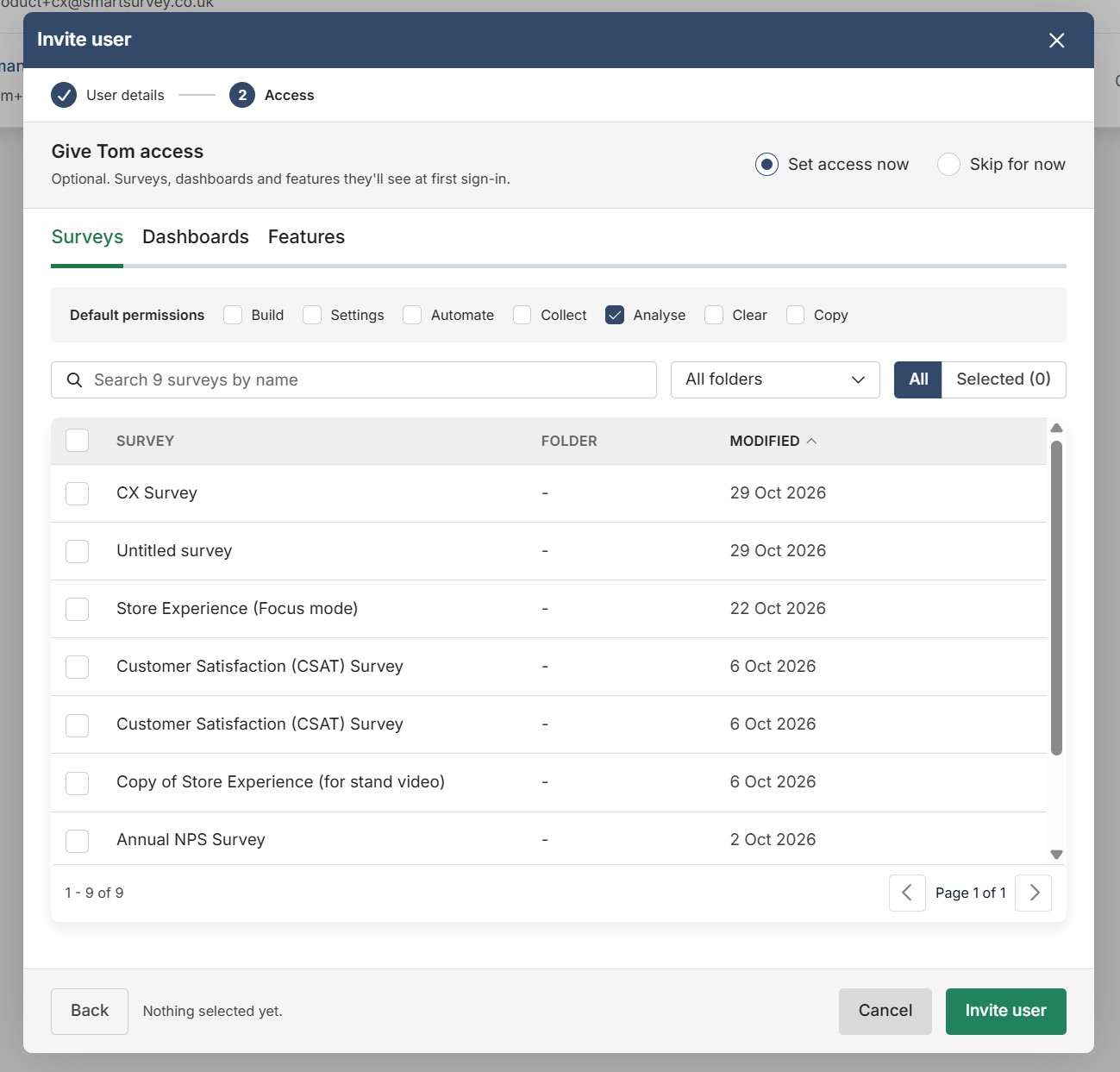
- Choose "Set access now" or, skip this step
- Use the Surveys, Dashboards and Feature permissions tabs to choose what the invitee should have access to (see the sections below)
- Choose an Invitation Method and click Invite User (or Send Invites if you are inviting several people)
If you are inviting multiple users at once, one set of access is applied to everyone in the list.
If you leave Set survey & dashboard access now turned off, the invitation is sent as normal and you can grant access later from the user’s Permissions tab.
Surveys
The Surveys tab lists the surveys you are able to share, with the owner’s name and the number of responses. Use the search box to find a survey, then tick it to add it to the invitation.
When you tick a survey it is added with Analyse permission. For a Full User you can tick any combination of the following:
- Build – full access to everything in Build (except settings)
- Settings – edit survey settings
- Automate – full access to everything in Automate
- Collect – full access to everything in Collect
- Analyse – full access to everything in Analyse
- Clear – clear the survey’s responses
- Copy – copy the survey into their own account
Each selected survey must have at least one permission ticked.
Dashboards
The Dashboards tab lists the dashboards you are able to share. Tick a dashboard to add it, then choose a level:
- Read only – the invitee can view the dashboard but not change it
- Edit – the invitee can view and change the dashboard
Feature permissions
The Feature permissions tab lets you switch on account features for a Full User at the same time. Only the features your account is subscribed to are listed.
These are the same settings you would otherwise set from the user’s Overview page after they have signed up.
Reviewing or changing access before the user signs up
Until the invitation is accepted, you can see and change the access you have chosen from the Pending Invitations page.
- Go to the Users page and click View Pending Invitations
- The Access on signup column shows a summary of what each invitation will grant, for example 3 surveys · 1 dashboard · User manager, with a Pending – applies on signup badge. Invitations with nothing chosen show No access staged
- Click the edit (pencil) icon next to the summary to open the access editor
- Make your changes and click Save, or Cancel to leave the invitation as it is
What happens when the invitation is accepted
As soon as the invitee completes sign-up, the surveys, dashboards and feature permissions on the invitation are added to their account. They will see those items the first time they sign in.
A few things to be aware of:
- If a survey or dashboard is deleted between sending the invitation and the user signing up, that item is skipped
- If the user’s licence type is changed before they sign up, the access is adjusted to match the new licence. For example, an invitation changed to an Analysis User licence will only grant read-only access, and one changed to a Casual User licence will grant nothing
- Deleting a pending invitation also removes the access chosen for it
Once the user has signed up, you can change their access at any time from their Permissions tab, in the same way as for any other user.